Speed Up Your Business Central Development: Quick Startup Object Selection (launch.json)
As a Business Central developer, how many times a day do you manually edit launch.json just to change which page or report opens when you press F5? Maybe you don’t do it quite as often as me, but I have to admit sometimes I do feel like a stupid monkey always doing the same.
If you’re testing different pages, you know the drill:
- Open launch.json
- Find the right configuration
- Locate the startupObjectId line
- Change the ID number
- Maybe change startupObjectType too
- Save the file
- Finally press F5
AL Navigator eliminates all of this with a single click from your status bar.
What Is the Startup Object?
When you debug or publish your AL extension in VS Code, Business Central can automatically open a specific page or report – that’s your startup object. It’s defined in your launch.json like this:
{
  "type": "al",
  "request": "launch",
  "name": "Your Own Server",
  "server": "http://localhost",
  "startupObjectId": 22,
  "startupObjectType": "Page"
}
This configuration would open Page 22 (Customer List) every time you launch.
How Does AL Navigator Solve That?
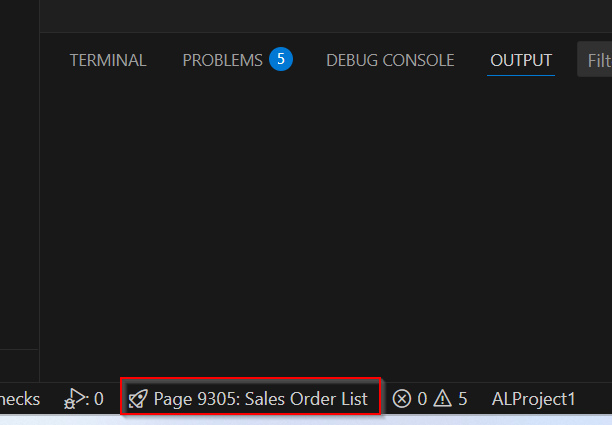
AL Navigator adds a rocket icon to your VS Code status bar showing your current startup object:
Click it anytime to change the startup object.
When you click the status bar, you get four ways to select your startup object:
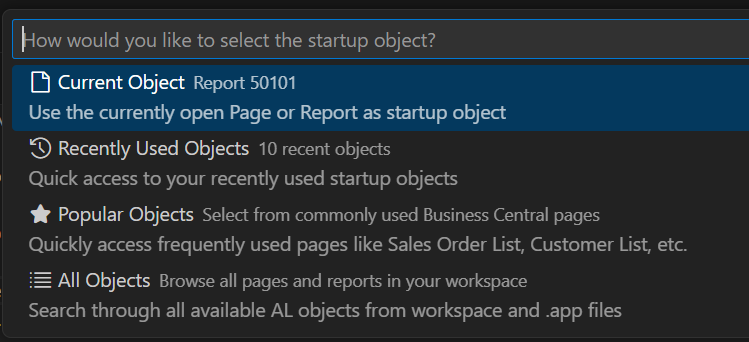
📄 Current Object
If you have a page or report file open in your editor, AL Navigator offers to use it directly.
Use case: You just created a new page and want to test it immediately.
🕒 Recently Used Objects
AL Navigator remembers the last objects you used as startup objects. Quick access to your recent testing targets.
Use case: You’re testing three different pages back and forth.
⭐ Popular Objects
Pre-configured list of the most commonly used Business Central pages:
- Sales Order List (9305)
- Customer List (22)
- Item List (31)
- General Journal (39)
- And many more…
Use case: You’re working on sales functionality and need quick access to standard BC pages.
📋 All Objects
Browse all pages and reports from:
- Your workspace AL files
- All
.appfiles in your workspace - Dependencies and base app objects
Searchable, filterable list with object IDs and names.
Use case: You need to find a specific page in a dependency or the base app.
Multi-Workspace Support
If you have multiple launch.json files in your workspace (multi-root workspaces or complex projects), AL Navigator lets you choose:
- Update just one specific
launch.json - Update all
launch.jsonfiles at once
Setup
Prerequisites
- AL Navigator extension installed
- A workspace with AL files
- An existing
launch.jsonfile in .vscode folder
Enable the Feature
The status bar appears automatically when:
- AL Navigator is installed and active
- Your workspace contains a
launch.jsonfile - At least one configuration exists
No additional configuration needed!
You can also use the Command palette to use the function:

6 thoughts on “Speed Up Your Business Central Development: Quick Startup Object Selection (launch.json)”
Mentions
Likes
Reposts